











New Microsoft Teams Calendar Rolled Out
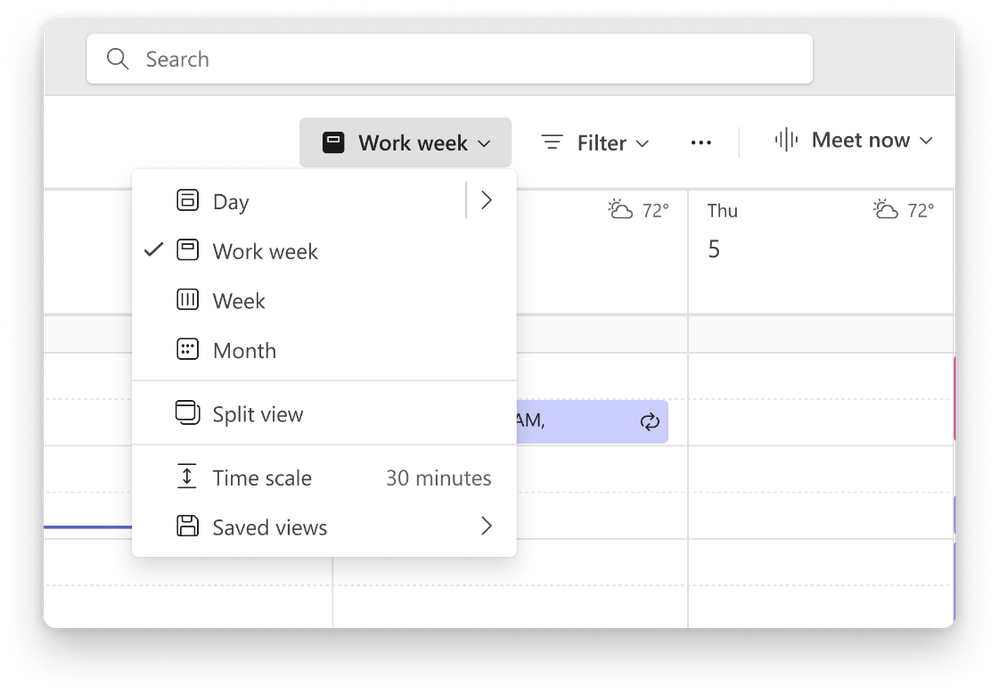
Microsoft recently fully rolled out a new calendar in Microsoft Teams and removed the toggle for the legacy calendar. The new calendar is closer to the Outlook calendar. Whether you’re loving or still adjusting to the new calendar, here’s how to get the most out of it!
Availability Status
When scheduling a meeting in the new Teams calendar, you can set the Show As availability status in the action bar. People who RSVP to the meeting will show this status by default during the meeting.
Meeting Categories
You can set categories on meetings from a dropdown in the action bar. Categories have an associated color which will change the color of the meeting in your Teams and Outlook calendars. You can name and add your own categories. If you add multiple categories, the meeting will reflect the color of the most recently added one.
Sensitivity Labels and Privacy
For additional privacy and security, you can make meetings private and add sensitivity labels. The privacy setting is in the action bar, and the sensitivity label is in the title row.
Meeting Scheduler
The new calendar has a meeting scheduler built in. This tool helps you find times that work for all attendees by showing their availability side by side, similar to the scheduling assistant in Outlook. Instead of going back and forth trying to find a time that works, the meeting scheduler streamlines the process and helps you book meetings faster. Scheduling Polls are also available.
Quick Tip
Want to make sure your meeting is recorded? When creating it in Teams, click on Options -> Production Tools -> Record and Transcribe Automatically
If you have been using the Legacy calendar, the new Microsoft Teams calendar experience may take some getting used to, but it brings helpful features that can improve how you schedule and manage meetings. Take a few minutes to explore the action bar, try setting categories on your next meeting, and check out the built-in scheduler. The more you use these tools, the more streamlined your workflow will become.