


How To Join a Zoom Meeting from a Teams Room
Definitions
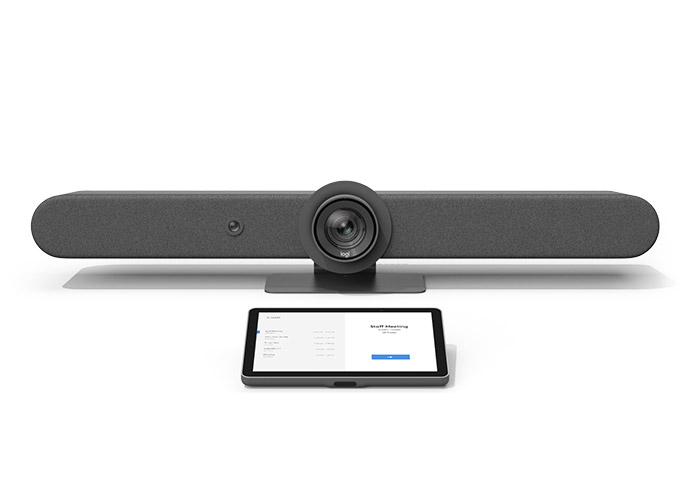
MTRoW – Fully-Featured Microsoft Teams Room running on Windows. Supports the broadest interoperability features, including SIP and H.323 dialing, allowing Teams Rooms devices to make audio, video, and screen sharing calls with other SIP or H.323 conferencing endpoints. It also supports PSTN integration, and direct guest join into Zoom and Webex meetings.
MTRoA – Microsoft Teams Rooms on Android. Lighter weight, but some features like SIP (and H.323) calling aren’t available yet.
Rooms Basic – The free Teams Room license. Includes core functionality and DGJ interop, but not SIP calling or advanced management.
Rooms Pro – The premium license. Adds SIP & H.323 calling, advanced management in the Teams Admin Center, intelligent AV features, and cloud analytics.
CRC – Conference Room Connector. This is Zoom’s gateway that lets SIP/H.323 room systems dial into Zoom meetings.
CVI – Microsoft Qualified third-party solution that enables third-party SIP and H.323 video room devices (VTCs) to join Microsoft Teams meetings. Pexip, Cisco, and HP Poly are the Certified Providers.
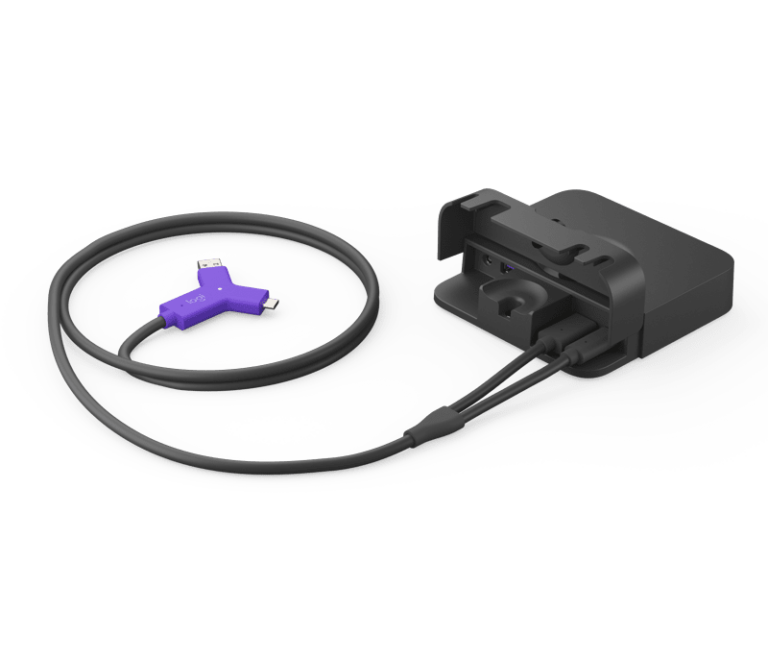
BYOD-Pass Through – Bring your own device – connecting a laptop to the room’s AV equipment so the laptop becomes the meeting endpoint while the room provides camera, mic, and speakers.
InteroperabilityOptions
Direct Guest Join
Direct Guest Join is the built-in way for Microsoft Teams Rooms to join third-party meetings on platforms like Zoom, Cisco Webex, and Google Meet. It uses WebRTC , which essentially opens an embedded browser session from the Teams Room device directly into the third-party platform’s web meeting experience.
DGJ works on both Teams Rooms on Windows and Teams Rooms on Android and works on either a Teams Rooms Basic or Teams Rooms Pro license. That makes it the lowest-barrier interop option available. The tradeoff is a reduced feature set: video maxes out at 720p, only one front-of-room display is supported, and HDMI content sharing is not available. Events, webinars, and lobby controls are also off the table.
For most organizations standardizing on Teams Rooms that occasionally need to join Zoom or Webex meetings, DGJ is a fast, simple way to get cross-platform interoperability up and running.
Cross Platform Meetings via SIP
Cross-Platform Meetings via SIP is the higher-fidelity alternative to Direct Guest Join for joining third-party meetings from Microsoft Teams Rooms. Instead of a browser-based WebRTC connection, it routes the call through a SIP gateway provided by a certified Cloud Video Interop (CVI) partner (see an updated list of partners here: Manage and set up Cloud Video Interop for Microsoft Teams – Microsoft Teams | Microsoft Learn)
This option requires a Teams Rooms Pro license and a SIP paid dialing plan, and is only available on Teams Rooms on Windows. In return, you get a significantly richer meeting experience: video up to 1080p, dual front-of-room displays, HDMI ingest and content camera support, and the ability to join events and webinars on Cisco Webex and Zoom. It also supports a broader range of platforms via SIP URI, including Amazon Chime, GoToMeeting, RingCentral, and other SIP services beyond the three DGJ supports.
For organizations with heavy cross-platform meeting traffic, rooms that need dual-screen layouts or HDMI content sharing into Zoom and Webex, or environments already invested in Pexip, Cross-Platform SIP is the premium interop path.
Feature Comparison
| Supported Functionality | Cross-Platform Meetings via SIP | Direct Guest Join |
|---|---|---|
| Join Button | Amazon Chime Cisco Webex Google Meet GoToMeeting RingCentral Zoom Other SIP services | Cisco Webex Zoom Google Meet |
| Join by ID | Amazon Chime Cisco Webex Google Meet GoToMeeting RingCentral Zoom Other SIP services via SIP URI | Zoom Google Meet |
| Events & Webinars | Cisco Webex* Zoom* | Not available |
| Receive video quality | Up to 1080p / 30 fps | Up to 720p / 30 fps |
| Send video quality | Up to 1080p / 30 fps | Up to 720p / 30 fps |
| Receive content | Available | Available |
| Send content with HDMI | Available | Not available |
| Send content with content camera | Available | Not available |
| Maximum front of room displays | Two displays | One display |
| Layout controls | Available* | Available* |
| List participant | Available* | Available* |
| View chat | Available* | Available* |
| Breakout rooms | Available* | Available* |
| View reactions | Available* | Available* |
| Send reactions | Not available | Not available |
| View content annotations | Not available | Not available |
| View transcript | Not available | Not available |
| Recording notification | Available | Available |
| Whiteboard view | Available* | Available* |
| Whiteboard interaction | Not available | Not available |
| Lobby control | Available* | Not available |
| Lobby authentication / bypass | Not available | Not available |
| Microphone mute sync | Not available | Not available |
| Teams Rooms coordinated join | Not available | Not available |
| SIP paid dialing plan required | Yes | No |
| Direct internet access required | No | Yes |
| Teams Rooms license | Teams Rooms Pro | Teams Rooms Basic Teams Rooms Pro |
| Teams Rooms platform | Teams Rooms on Windows | Teams Rooms on Windows Teams Rooms on Android |
Source: Third-party meetings on Teams Rooms – Microsoft Teams | Microsoft Learn
BYOD Options
Explore BYOD interoperability options: Teams Rooms BYOD: Wired Vs. Wireless Connection Options Compared – UnifiedCommunications.com
Need Answers? Meet our experts! Meeting Room Design And Engineering – UnifiedCommunications.com