


Teams Rooms BYOD: Wired vs. Wireless Connection Options Compared
What is BYOD
BYOD (Bring-Your-Own-Device) is the “platform agnostic escape hatch” for Teams Rooms. It makes the user’s laptop the meeting endpoint (running Zoom, Google Meet, Webex, or any other conferencing platform), and the room functions as a peripheral system supplying AV (cameras, microphones, speakers, display). Two types of BYOD options exist: wired and wireless. Let’s look at how each option solves the same problem differently, and what the tradeoffs are.
The Fundamental Shift
Typically, a Teams Room itself is the meeting endpoint. It has a computer or integrated appliance that runs the Teams Room application. It has its own resource account, its own calendar, and it shows up in the Teams Admin Center and Pro Management Portal. The room’s compute itself joins meetings when someone walks in and click “Join” on its touch panel. The camera, microphone, speakers, and display are all controlled by the room’s compute. It is a self-contained, always-ready system.
BYOD pass-through switches that room compute into functioning as a pass-through. The user’s laptop becomes the meeting endpoint, and the hardware in the room: the camera, microphone, speakers, and display become peripherals to the laptop.
When BYOD mode activates, the room compute undergoes a switch into BYOD mode and may terminate the Teams Application causing the room to appear offline in the Teams Admin Center and Pro Management Portal.
Wired BYOD
Overview
With Wired BYOD, the laptop connects physically to the room’s video bar or conferencing device, which then exposes its camera, microphone, and speaker as USB peripherals. Depending on the hardware and cable used, this is either a single-cable or two-cable setup.
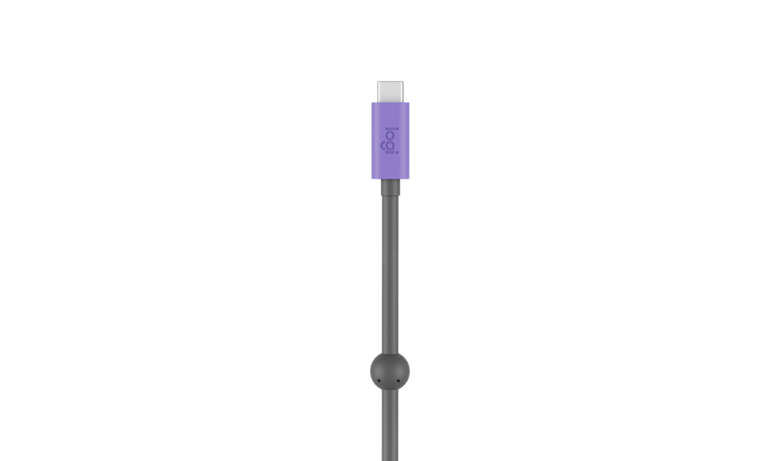
Single-cable setup (USB-C with DP Alt Mode): If the laptop’s USB-C port supports DisplayPort Alternate Mode, a single USB-C cable can carry both the USB peripheral data (camera, mic, speaker) and the video signal to the front-of-room display. This is the cleanest user experience: one cable, everything works. Not all laptops or cables support DP Alt Mode, so this needs to be validated for your environment. (Explore: Teams Rooms BYOD Note: USB-C DP Alt Mode – UnifiedCommunications.com)
Two-cable setup (USB + HDMI): When DP Alt Mode isn’t available, the laptop connects with a USB cable (USB-C or USB-A) for peripherals and a separate HDMI cable for the display. This is more universally compatible but adds cabling complexity and potential user confusion.
Examples
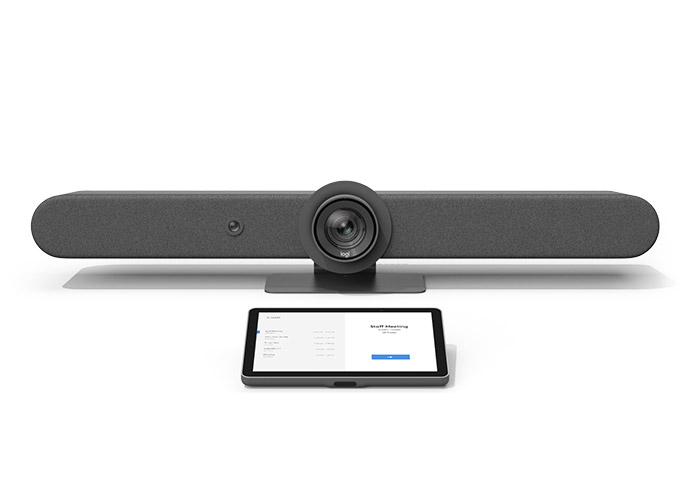
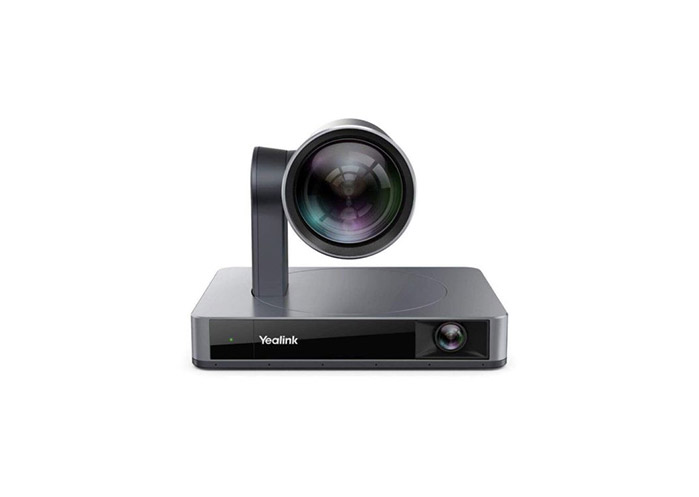
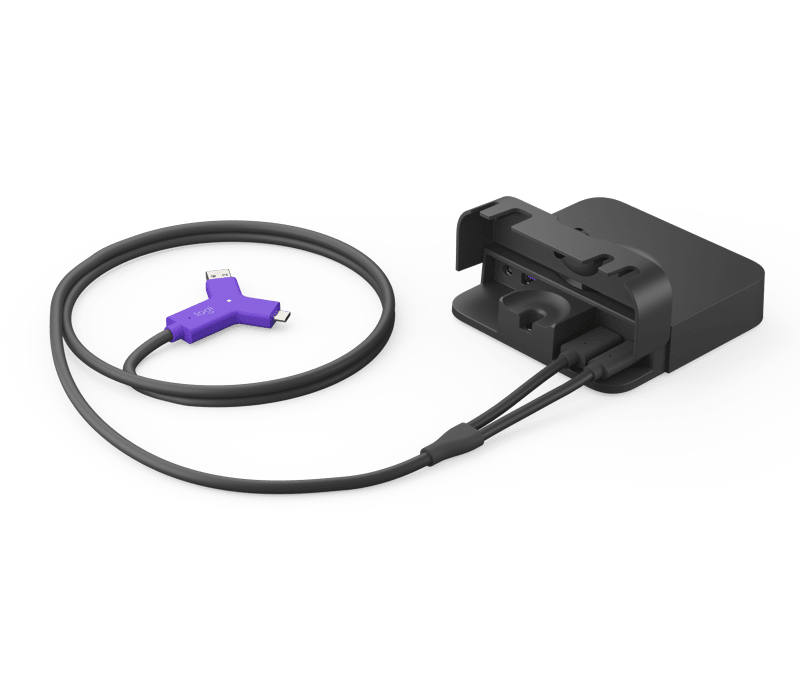
Common devices that support wired BYOD include Neat Bar series, Logitech Rally Bar family and MeetUp 2, Poly Studio X series, and Yealink MeetingBar series. Single-cable accessories like Logitech Extend and Logitech Swytch, or the Yealink VCH51 hub, can simplify the table connection.
Wireless BYOD
Overview
With wireless BYOD, the laptop still runs the meeting, but instead of a physical cable, a wireless bridge makes the room’s peripherals (camera, mic, speaker) and display available to the laptop. This eliminates cable clutter and port-compatibility issues but introduces dependencies on Wi-Fi conditions, wireless protocols, and in some cases, software or a dongle on the laptop.
Examples
Common wireless BYOD solutions include Barco ClickShare Conference (CX series) and Crestron AirMedia. Both create a direct wireless link between the laptop and a base unit in the room.
BYOD For Interoperability
There are interoperability edge cases, such as Zoom E2EE (end-to-end encryption), where other interoperability options (see: How To Join A Zoom Meeting From A Teams Room – UnifiedCommunications.com) fall short. Zoom meetings with E2EE enabled require users to be running the Zoom client to join, so DGJ and SIP-based interoperability (such as PEXIP) does not work – BYOD is the only way to join these meetings from a Teams Room for a company without any Zoom Rooms.
Challenges
Along with its interoperability advantages, BYOD mode presents real UX challenges. Training users on how BYOD modes work, when to plug in, which HDMI port is for content sharing versus BYOD in wired setups, ensuring the correct peripherals are selected in the meeting platform client, providing clear labeling at the table, and managing the additional cost these are all trade-offs that have to be assessed when implementing a BYOD system.
Along with its interoperability advantages, BYOD mode presents real UX challenges. Training users on how BYOD modes work, when to plug in, which HDMI port is for content sharing versus BYOD in wired setups, ensuring the correct peripherals are selected in the meeting platform client, providing clear labeling at the table, and managing the additional cost these are all trade-offs that have to be assessed when implementing a BYOD system. The good news – we love to solve these problems for you! Check out our Meeting Room Design and Engineering Services: Meeting Room Design And Engineering – UnifiedCommunications.com