



Powerful Microsoft Teams Features Coming in April 2026
Are you ready for the features and improvements to Microsoft Teams coming in April? Let's take a look at Microsoft's Roadmap.
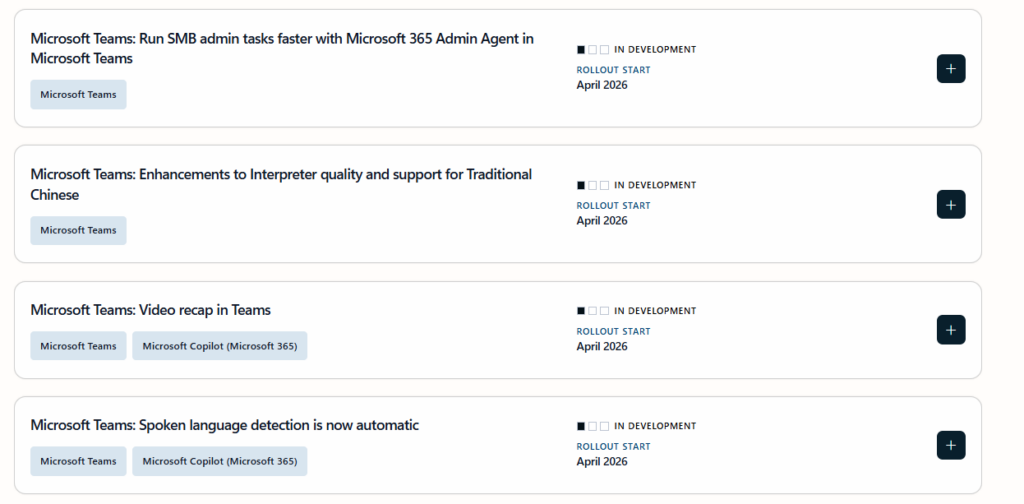
Microsoft Teams has some improvements planned for April 2026, let’s take a look!
Chat one-on-one with SharePoint agents in Teams
What are SharePoint Agents?
SharePoint Agents come in two flavors. Ready-made, and custom built. Ready-made agents automatically come with every SharePoint site by default (SharePoint admins can remove them with these steps) and can be accessed by clicking on the Copilot button in the top right.

Ready-made agents understand content on the site and can answer questions. Custom built agents are created by clicking + New -> Agent on a SharePoint site and following the Wizard. You customize the agent with a name, specific sources, and behavior/instructions. These custom agents create an associated “.agent” file.
SharePoint Agents are useful for letting users have natural conversation to find information, get answers, and complete tasks – grounded in your organization’s own SharePoint content and respecting existing security permissions (think letting your users world-wide ask HR policy questions in their native language). Let us show you how SharePoint Agents can work for you!)
SharePoint Agents in Teams
Currently, you can add custom-build SharePoint agent into a Microsoft Teams chat or channel by opening your agent, clicking the ellipsis, then selecting “Copy link for Teams”.
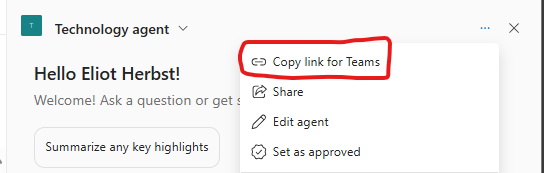
When send this link into a chat or channel in teams and you will see a prompt to add the agent to the conversation. The agent will introduce itself, and you will be able to @mention it. (See complete instructions from Microsoft here)
Currently, you can only add the agent to group chats, meeting chats, or channels. With this upcoming change, you will be able to chat one-on-one. If you personally use a SharePoint agent heavily, and don’t necessarily want to put those communications in a group chat, you will no longer have to go into SharePoint to talk to the agent – nice improvement!
Enhancements to Interpreter Quality and Support for Traditional Chinese
Interpreter is a feature that provides real-time speech-to-speech translation, like the awesome Universal Translator from Star Trek. It also lets you use your own voice for translation. It’s not perfect, but this new release pushes it forward!
Interpreter Accuracy Improvement
Microsoft Teams Interpreter is getting an upgrade in accuracy, along with better name recognition, and recognition of common industry terms. Technical jargon, product names, and professional terms are translated more reliably. It also adds support for Traditional Chinese (in addition to English, Spanish, Portuguese, Japanese, Simplified Chinese (Mandarin), Italian, German, French and Korean) bringing the total up to 10!
Support for M365 Custom Dictionary
In the M365 admin center, you can create custom dictionaries for Copilot. Custom Dictionaries provide a way to let the AI models powering Microsoft Teams transcription to recognize your organization’s special terms, jargon, acronyms, and industry-specific terms. (Copilot will finally know what a TPS report is!).
To upload a custom dictionary, go to the M365 Admin Center -> Copilot -> Settings -> View All, then find Copilot Custom Dictionary.
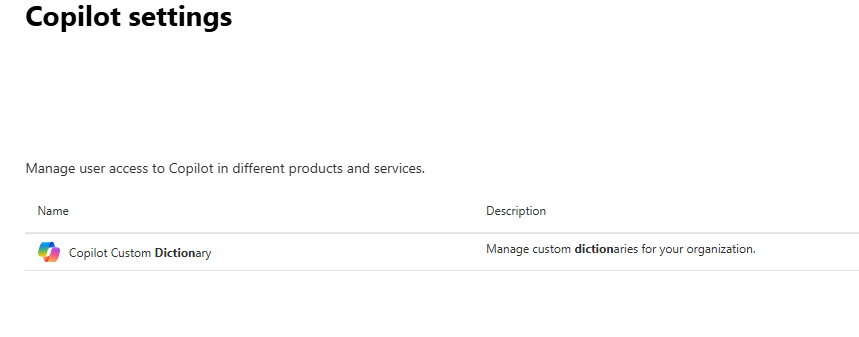
Need help creating a custom dictionary? Check out Microsoft’s guide here.
Microsoft Teams transcription and Copilot/Intelligent Recap support custom dictionary terms, with this update, Interpreter will as well. This is especially valuable for organizations in specialized fields like healthcare, legal, or engineering, where accurate recognition of domain-specific terminology can make a significant difference in transcription quality and the usefulness of AI-generated meeting summaries.
Spoken Language Detection is Now Automatic
Speaking of Interpreter, you previously manually selected each speaker’s spoken language. Manual selection is no longer going to be available, instead Microsoft Terms will automatically detect the spoken language of each meeting speaker, and apply it to both Interpreter, and multilingual speech recognition.
Honor Windows Do Not Disturb Setting
Windows Machines have a Do Not Disturb setting, used to stop pop-up notifications from appearing on the screen. It can be toggle by clicking the date/time in your System Tray on the bottom right, then clicking the bell icon.
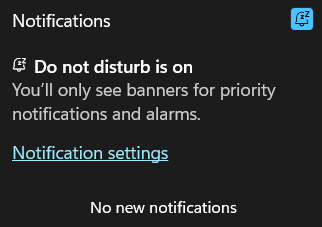
Currently, Do Not Disturb does not stop Microsoft Teams notifications. With this change it will finally be a consistent and intuitive experience for Windows Users.
Intelligent Meeting Recap Includes Video
Intelligent meeting recap will now include video-based recaps. Video recap creates narrated video highlights from recorded meetings, featuring key takeaways and short clips that showcase important moments.
The AI will analyze video content, identify key discussion points, decisions made, and action items assigned, with timestamped links to relevant moments in the recording. It can also distinguish between different types of meeting content like when someone is presenting slides versus having a free-form discussion and incorporates those elements into the summary. It’s like an edited highlight real for your Microsoft Teams meetings rather than just a transcript or text summary.
Run SMB Admin Tasks Faster with M365 Admin Agent in Microsoft Teams
For small and medium business administrators the Microsoft 365 Admin Agent can be accessed from Microsoft Teams. The Admin Agent can add users, assign licenses, and help with configuration questions, all through a conversational agent. This is a nice quality of life improvement for heavy users of the Admin Agent!
You can see the full Microsoft Teams roadmap here: Microsoft 365 Roadmap | Microsoft 365
Need Answers? We love to help!